
Use Cases
Use Case: Recognizing a Formula
Formulas in spreadsheets can be hard to understand. Do you recognize the one in cell
E6?
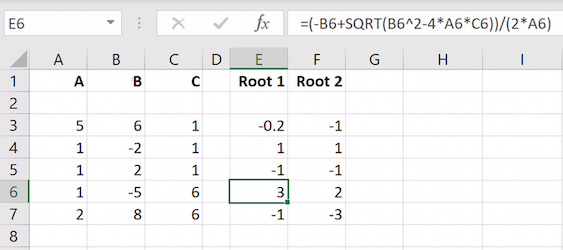 A formula in cell E6
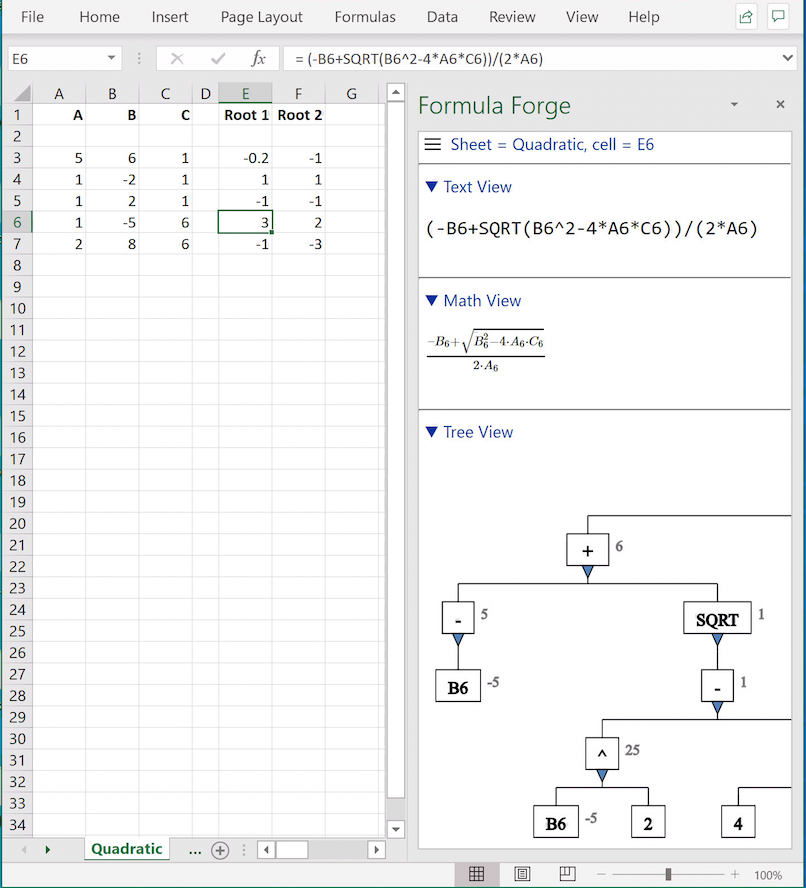
Let's ask Formula Forge for help. Select cell E6 and click the
Get Formula button on Excel's Formulas ribbon to
see a pane with three views of the formula in cell E6.
The math view, which shows the formula as it might be typeset in a book, is
particularly informative: it reveals that this formula
is none other than the familiar quadratic formula taught in high school algebra.
 The
The Formula Forge pane
Along with the math view are a text view and a tree view. The
Formula Forge pane is not wide enough to display
the entire tree view, so we click its left edge and drag it left to
widen the pane.
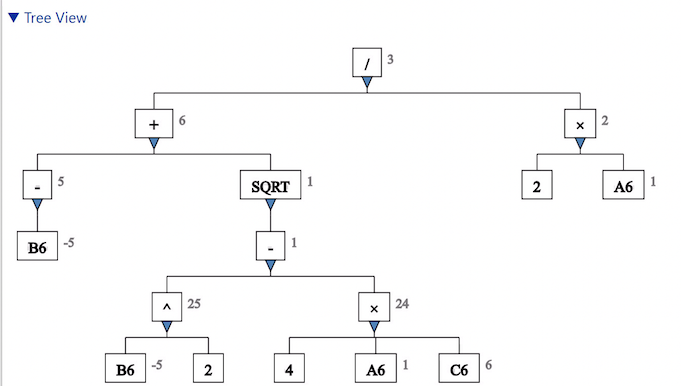 The widened tree view
Now we can see the entire tree view. This view displays the elements that comprise the formula, according to the order in which they are evaluated, from the bottom up. The elements at the bottom are constants or references, and the elements higher up correspond to operators or functions.
To understand where an element in the tree view occurs in the entire formula, we can click that element to highlight it in all views. To find the smallest element in the tree view that contains a symbol in either the text view or the math view, we can click that symbol to highlight the containing element in all views. Formula Forge automatically synchronizes all three views when an action occurs in any one of those views.
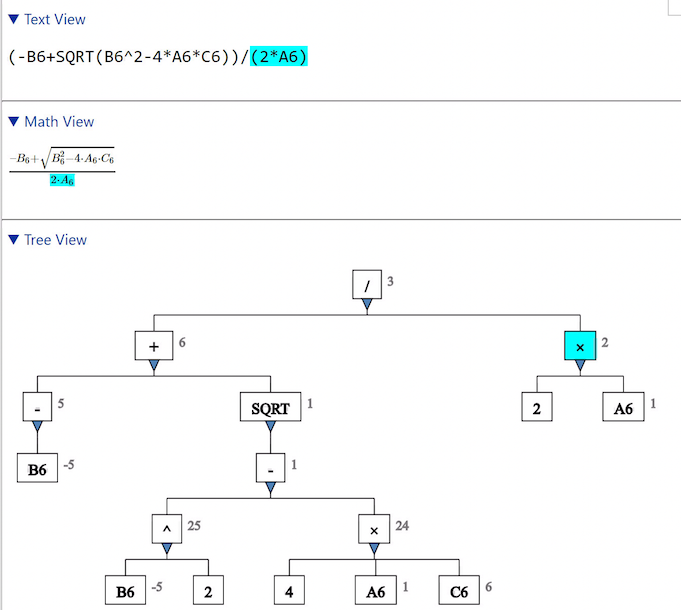 Selecting an element